Search and collections
Save photos to favorites and collections
Favorites & Collections
Bookmark photos you love with Favorites, group photos into shareable Collections, and control who can view or download them.
Overview
GalleryID gives you two ways to organize photos beyond galleries: Favorites and Collections. They serve different purposes and are designed to work together.
| Feature | Favorites | Collections |
|---|---|---|
| Purpose | Personal bookmarks for quick access | Curated groups of photos to organize or share |
| Visibility | Private, only you can see them | Private, Password-protected, or Public |
| Sharing | Not shareable | Shareable via link with optional password |
| Downloads | N/A | Configurable, enable or disable per collection |
| Who can use | Subscribers and Buyers | Subscribers and Buyers |
Saving Favorites
Favorites are personal bookmarks. When you heart a photo, it is saved to your Favorites list for quick access later. Favorites are private, no one else can see which photos you have favorited.
How to Favorite a Photo
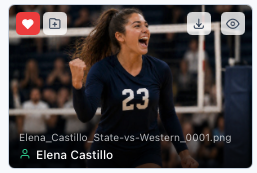
- 1
Browse any gallery
Open a gallery from the Gallery Browser or from a shared link. - 2
Click the heart icon
Hover over any photo thumbnail and click the heart icon in the corner. The heart fills red to confirm the photo is saved. - 3
Access your Favorites
Click Favorites in the dashboard sidebar to see all your bookmarked photos in one place.
Removing a Favorite
Click the filled heart icon on any favorited photo to remove it. You can do this from the gallery view or from your Favorites list. Removing a favorite does not delete the photo, it simply removes your bookmark.
Creating & Managing Collections
Collections let you group photos from one or more galleries into a curated set. Use them to build highlight reels, client selections, team picks, or any custom grouping.
Creating a Collection
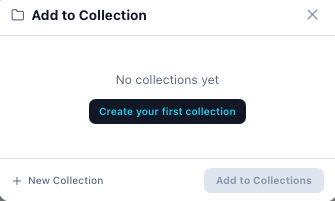
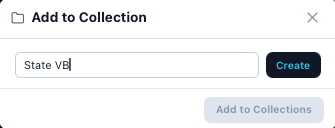
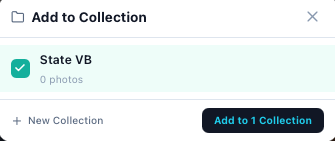
- 1
Open the Collections panel
Click Collections in the dashboard sidebar. - 2
Click Create Collection
Enter a name and optional description for your collection. - 3
Add photos
Browse galleries and select photos you want to include. Use the Add to Collection option to add selected photos to an existing collection.
Collection Settings

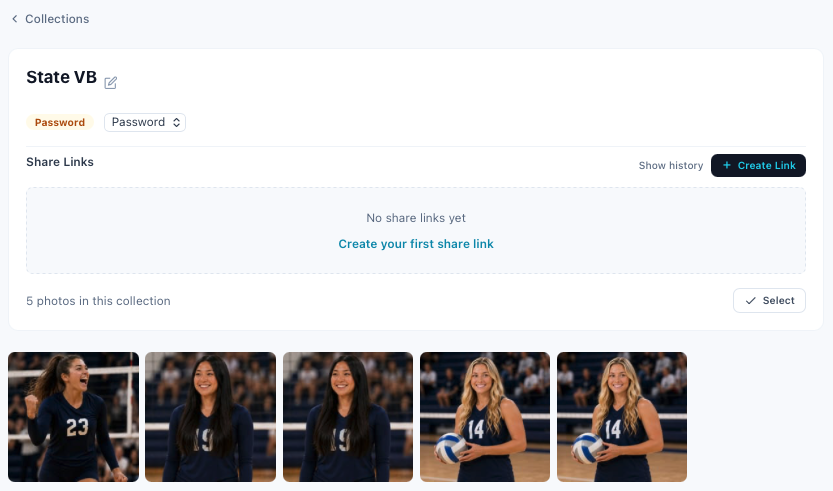
Each collection has its own name, description and visibility. You can change these at any time from the collection detail view. Passwords, expiry and downloads are set on each share link, not on the collection.
| Setting | Options | Default |
|---|---|---|
| Name | Any text | (required) |
| Description | Optional text shown on the share page | Empty |
| Visibility | Private, Password, or Public | Private |
Photo Order and Removing Photos
Photos stay in the order they were added to the collection, and the shared page shows them in that order. To take photos out, click Selectin the collection detail view, pick them, and click Remove. Removing a photo from a collection does not delete it.
Sharing Collections
Collections are shared through share links. Set the collection visibility to Public or Password, then create one or more links. Each link has its own address at /c/<token>, and its own label, password, expiry, download size and downloads switch.
Visibility Modes
| Mode | How It Works |
|---|---|
| Private | The collection is only visible to you, and its share links do not open. Set visibility to Public or Password to enable sharing. |
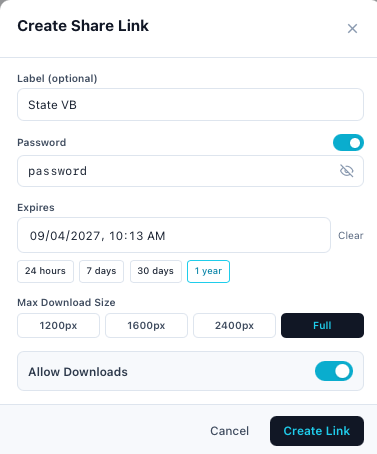
| Password | For a collection shared behind a password. Turn Password on in each share link; anyone with that link sees the collection name and photo count, but must enter the correct password to view photos. |
| Public | Anyone with a share link can view the photos. A link with Password on still asks for its password. |
How to Share a Collection
- 1
Set visibility
Open the collection and change visibility from Private to Public or Password. The Share Links section appears. - 2
Create a link
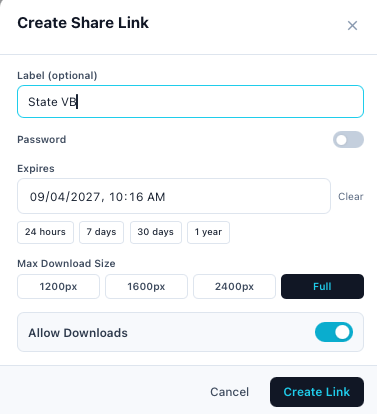
Click Create Link. Give it an optional label, turn Password on if recipients should need one, and give it an expiry if you want one: 24 hours, 7 days, 30 days, 1 year, or a date and time of your own. Max Download Size caps downloads at 1200px, 1600px, 2400px or Full, and Allow Downloads decides whether recipients can download at all. Then click Create Link. - 3
Copy or send it
Each link is listed with its label, its expiry, and how many views and downloads it has had. From the row you can copy the link, send it by email, edit it, or revoke it.
A collection can have several links at once, for example one with downloads for a client and one without for a coach. Revoking a link cannot be undone; anyone holding it loses access. Show history lists revoked links as well. A saved password cannot be shown again: to change it, edit the link and set a new one.
People Filter on Shared Collections
When photos in a shared collection have been processed with facial recognition, the share page displays people filter badges at the top. Recipients can click any person's name to filter the collection down to just their photos.
How People Badges Work
- •Each badge shows a person's name and the number of photos they appear in.
- •Click a badge to filter, only photos containing that person are shown.
- •Click the badge again (or click All) to clear the filter and show all photos.
- •Photo cards display person names in bold above the filename, making it easy to identify who is in each shot.
Downloads from Shared Collections
The collection owner controls whether recipients can download photos. This is managed via the Allow Downloads toggle on each share link, along with the largest size that link can download.
When Downloads Are Enabled
- •Recipients see checkboxes on each photo card for selection.
- •A Select All button appears at the top of the page.
- •A Download button lets recipients download selected photos as a ZIP file.
- •Individual photos can also be downloaded from the lightbox view.
- •Select All respects the active people filter, if filtering by a person, only their photos are selected.
When Downloads Are Disabled
When the toggle is off, all download-related UI is hidden from the share page. Recipients can browse and view photos in the lightbox, but there are no checkboxes, no Select All button, and no download options.
Buyer / Recipient Path
There are two paths to Favorites and Collections depending on how you access GalleryID.
Subscriber Path (Organization Account)
If you have a GalleryID subscription, you access Favorites and Collections from the dashboard sidebar. As a subscriber you can:
- •Favorite photos across all galleries in your organization.
- •Create, manage, and share collections.
- •Control visibility, passwords, and download settings.
- •View the collection in the dashboard or via the share link.
Buyer / Recipient Path
If you received a gallery or collection link (you are a buyer or recipient), you can also use Favorites and Collections from your buyer dashboard. As a buyer you can:
- •Favorite photos from galleries or collections shared with you.
- •Create your own collections from photos you have access to.
- •Share your collections with others.
- •Access your Favorites and Collections from the sidebar in your buyer dashboard.
| Capability | Subscriber | Buyer |
|---|---|---|
| Favorite photos | Yes | Yes |
| View Favorites in sidebar | Yes | Yes |
| Create collections | Yes | Yes |
| Share collections | Yes | Yes |
| Control downloads | Yes | Yes |
| Upload photos | Yes | No |
| Manage galleries | Yes | No |
Troubleshooting
| Issue | What to Check |
|---|---|
| No link to copy | Share links appear once visibility is Public or Password. Open the collection and click Create Link. |
| Link does not open | The collection may be set to Private, or the link may have expired or been revoked. Check visibility, then look at the link under Share Links; Show history lists revoked ones. |
| Cannot download photos | Check that Allow Downloads is on for that share link. Use Edit link on its row. |
| People filter badges not showing | Photos must have been processed with facial recognition. If xmp_persons data is missing, the badges will not appear. |
| Password not working on share page | Passwords are case-sensitive. A saved password cannot be shown again, so use Edit link on that link and set a new one. |
| Favorites disappeared | Make sure you are logged into the same account. Favorites are tied to your user account and do not transfer between accounts. |
| Cannot see Collections in sidebar | Collections appear in the dashboard sidebar. If you are viewing a shared gallery page (not logged in), you will not see the sidebar. |