Culling and editing
Adjust tone and color
A quick exposure and color pass before you send. Edits apply to the copy you export or send, never to the original file.
Open the Edit view
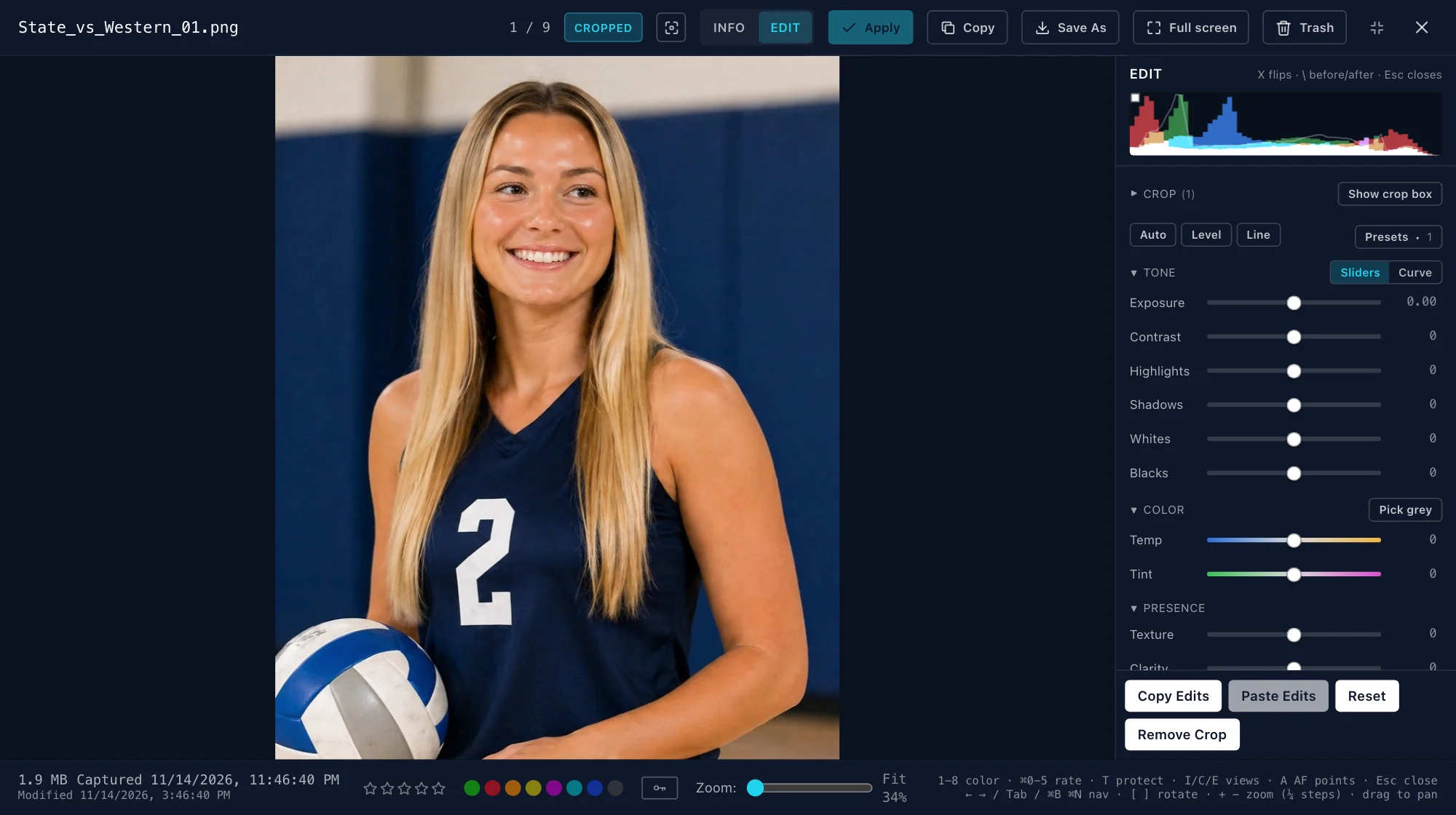
- •Crop, straighten, tone and color are all in this one view. In the photo window, press C or E, or click EDIT.
- •Apply, zoom, AF points and Pick grey show the finished photo. C, E or Show crop box brings it back.
- •Apply, at the top of the window beside Copy and Save As, saves the crop and the sliders now (Enter). Moving to another photo or closing the window saves them too.
- •Hold \ to see the photo before your edits. Esc closes the window.
- •⌘Z undoes your last change to the crop or the sliders, back to when you opened this photo.
Histogram and quick fixes
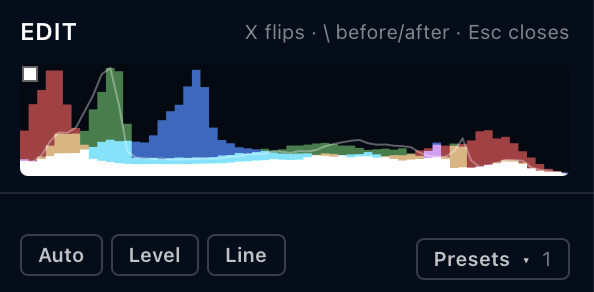
The histogram shows the photo as it will go out. The small squares in its top corners warn of clipping: shadows on the left, highlights on the right, white when all three channels are gone. Hover one for the percentage.
| Button | What it does |
|---|---|
| Auto | Sets the sliders from this photo's histogram. A starting point, not the answer. |
| Level | Finds a horizon or a vertical and levels the photo. It reads Undo level once applied. |
| Line | Drag along something that should be level or plumb. The reliable one on a busy frame. Esc cancels. |
| Presets | Copy Edits, Paste Edits, Save preset, Manage presets and your saved presets. The number is how many presets you've saved. |
Sliders
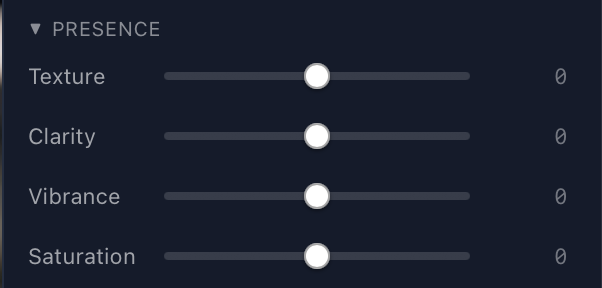
| Group | Sliders |
|---|---|
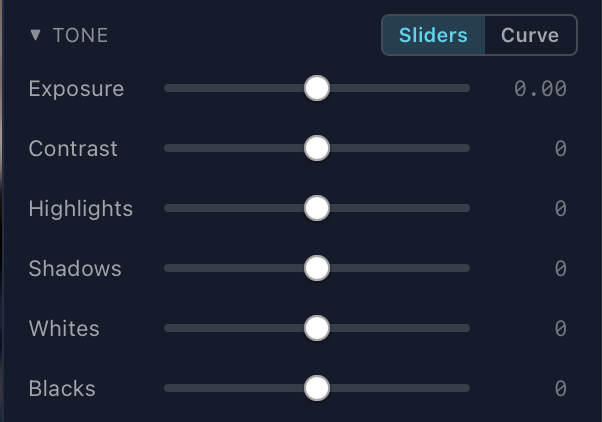
| Tone | Exposure, Contrast, Highlights, Shadows, Whites, Blacks. Curve swaps them for a point curve: click to add a point, drag to move, double-click or Delete to remove. |
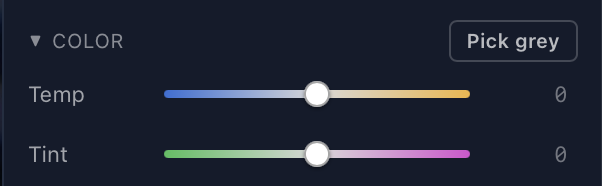
| Color | Temp and Tint. Pick grey is the white balance eyedropper: click something neutral in the photo and both set themselves. |
| Presence | Texture, Clarity, Vibrance, Saturation. |
Three ways to set a value
- •Drag the slider.
- •Click the number and type it. Enter applies.
- •Hover a slider and press ↑ or ↓. Hold Shift for bigger steps.
Double-click a label or its track to put that slider back to 0. Click a group’s title to fold it away.
Copy Edits and presets

| Button | What it does |
|---|---|
| Copy Edits | Holds this photo’s slider values (⌘C). |
| Paste Edits | Sets this photo’s sliders to match (⌘V). Greyed out until you’ve copied. |
| Reset | Sets each slider back to 0, and puts the crop back how it was when you opened this photo. |
| Remove Edits | Shows once a photo has saved edits. Deletes them, so the photo goes out unedited. |
Presets
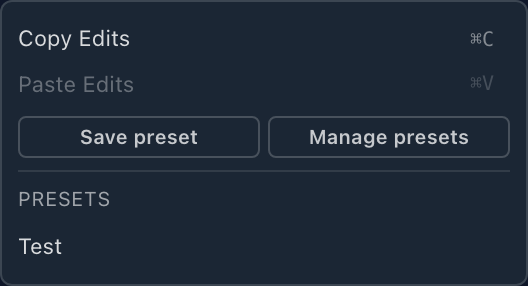
Save preset, just under Copy Edits and Paste Edits, names this photo’s values so you can apply them to any photo in one click. A preset fills the sliders on the photo in front of you only: use Paste Edits when a run of frames should match.
Manage presets lets you rename a preset, update it to the sliders on the photo in front of you, or delete it. Update and Delete ask first. Press Done to go back to applying presets.