Tag from your roster with one press, or let MatchID do it. Included in all plans. Start your 14-day free trial.Get Started →
GalleryID
GalleryID CloudGalleryID DesktopMatchIDCaptionID
PhotographersTeamAthletic DepartmentsColleges & UniversitiesAthletic ConferencesOrganizations
HelpComparePricingBlogAbout
Book a DemoLog In
GalleryID CloudGalleryID Desktop
Help homeVideo tutorials

Start here

How GalleryID Desktop worksYour first game, start to finish

Getting started and ingest

Set your MatchID settings and metadata templateIngest from a cardBrowse your photos

MatchID

Index reference headshotsTag photos with MatchIDTurn camera voice memos into names

CaptionID

Set a roster on a folderTag photos in the photo window

Metadata

Build an IPTC template with tokensFill fields from the camera with ExifIDFix a wrong value across a folder

Culling and editing

Cull out-of-focus photosCrop and straightenAdjust tone and color

Files and delivery

Copy, move and rename filesExport, watermark and sharpenSend named files over FTPSend photos to GalleryID Cloud

Camera and phone

Caption on your phone as the camera sends, with SidelineID

Archive and backup

Browse an unplugged drive with CatalogBack up and restoreFree disk space taken by previews

Reference

Keyboard shortcutsActivate a computer and manage devicesTeams: personal keys and sharing

More

TutorialsContact supportYour Desktop account
Desktop help›Getting started and ingest›Set your MatchID settings and metadata template

Getting started and ingest

Set your MatchID settings and metadata template

Setting your MatchID settings1:48

Set these once. They decide which people MatchID compares against, how sure it has to be before it writes a name, and which fields the name goes to.

Where the settings areScopeTuningBlurry facesFace sizeDefault templateGood to know

Where the settings are

  1. 1

    Open Settings

    Press ⌘,.
  2. 2

    MatchID Settings

    Scope, tuning, blurry faces and face size. Everything on this page except the template.
  3. 3

    MatchID Metadata

    The Default template: which fields a name is written to when someone is tagged.
The defaults are calibrated for team sports. Start with them and only change a setting when Review tells you to.

Scope

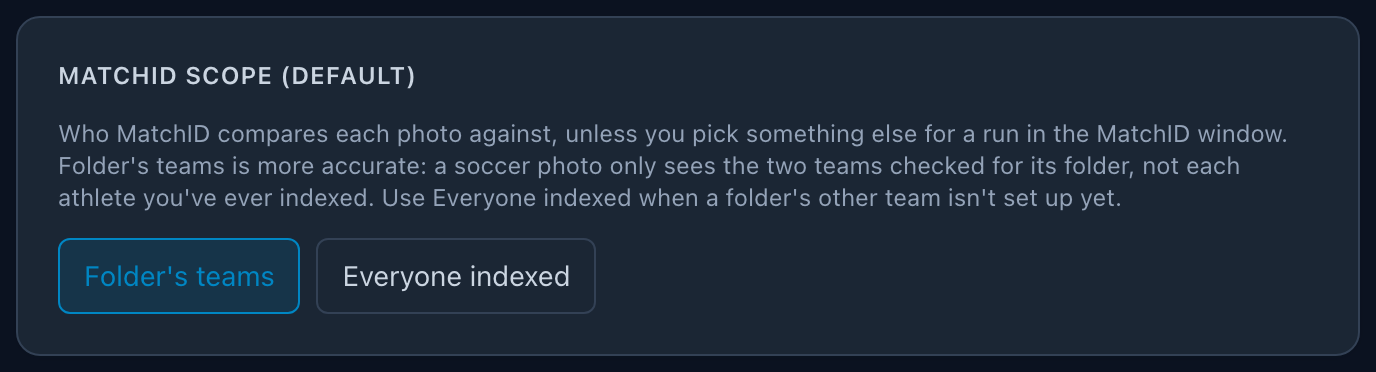
MatchID scope (default): Folder's teams or Everyone indexed

Who MatchID compares each photo against, by default. Compare against, in the MatchID window, can change it for one run.

OptionWhat it does
Folder's teams (default)Only the teams checked for the folder. A match photo only sees the two teams on the field.
Everyone indexedEach person you've ever indexed. Slower, and more look-alikes to pick from.
One team beats the whole library, for speed and for accuracy. Use Everyone indexed only when a folder’s other team isn’t set up yet.

Tuning

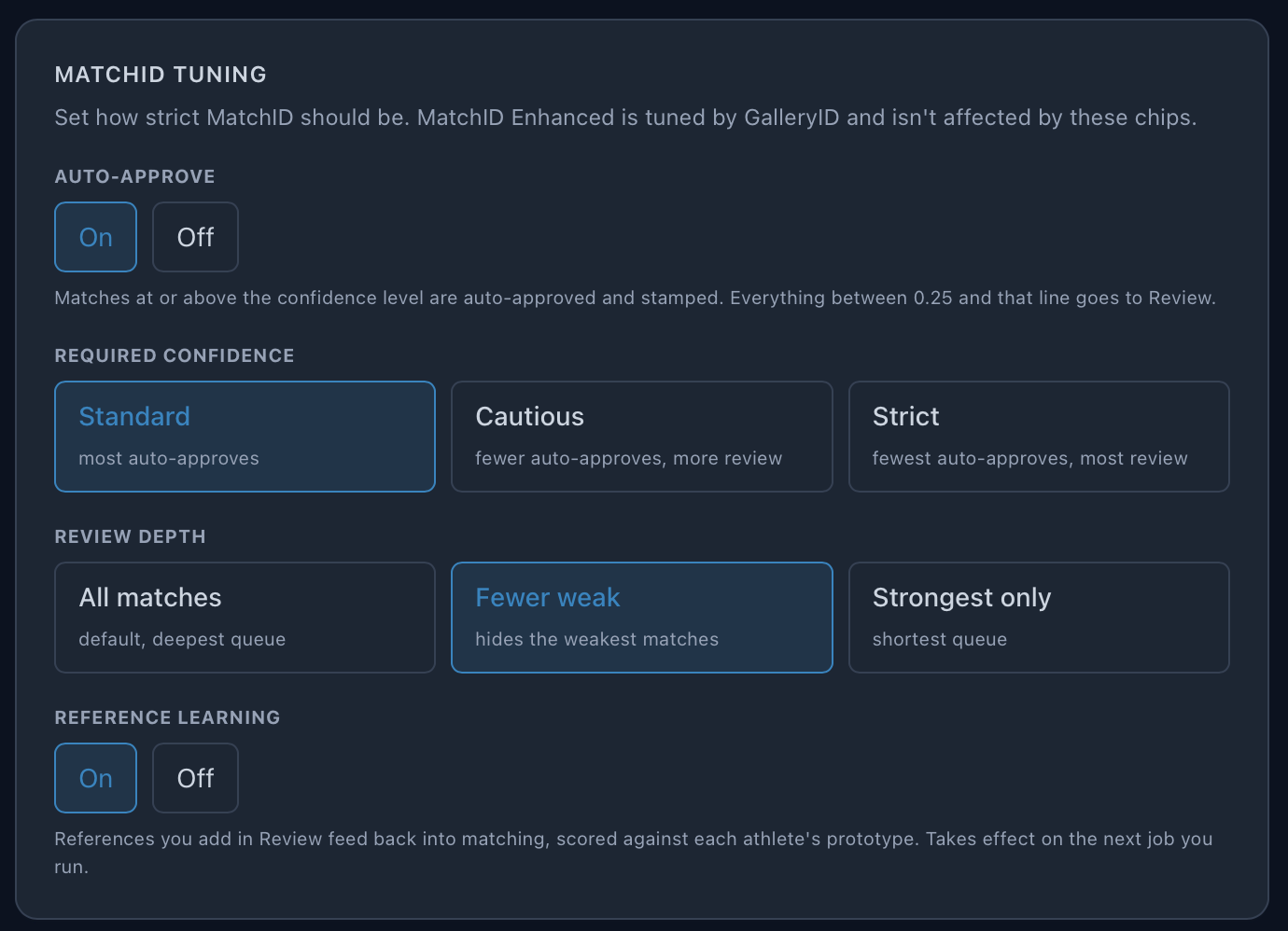
MatchID tuning: Auto-approve, Required confidence, Review depth and Reference learning
MatchID tuning: auto-approve on, Standard confidence, Fewer weak review depth and reference learning on.

Auto-approve

Whether confident matches are approved without you. It comes first because it decides whether Required confidence applies at all.

OptionWhat it does
On (default)Matches at or above the confidence level are approved and written straight away. The rest go to Review.
OffEach match goes to Review. Nothing is written until you confirm it.
Turn it off and Required confidence goes away, since each match waits for you anyway. Your choice is kept, and it’s back when you turn Auto-approve on again.
Names are confirmed. Never guessed. A name is written one of two ways: you confirm it, or it clears the confidence line you set here.

Required confidence

Where auto-approve starts. Shown while Auto-approve is on.

OptionWhat it does
Standard (default)Most auto-approves.
CautiousFewer auto-approves, more in Review.
StrictFewest auto-approves, most in Review.
Strict isn’t the “better” setting. It auto-approves less and sends more faces to Review for you to confirm.
One folder, or a set of them, can use its own level. Pick one under Required confidence in the MatchID window and it’s saved with the folder, in place of this one, for that folder’s runs. Use Settings default follows this page. With Cascade to subfolders on, the games under it use the same level. Auto-approve off still wins: a folder’s level can’t turn it back on.

Review depth

Where the Review queue stops, separate from where auto-approve starts.

OptionWhat it does
All matches (default)The deepest queue.
Fewer weakHides the weakest matches.
Strongest onlyThe shortest queue.
Tightening it hides matches, it never discards them. Switch back and they reappear without reprocessing.

Reference learning

OptionWhat it does
On (default)Faces you add as references in Review improve later matching. Takes effect on the next job.
OffReferences are kept but not used for matching.

Skip blurry faces

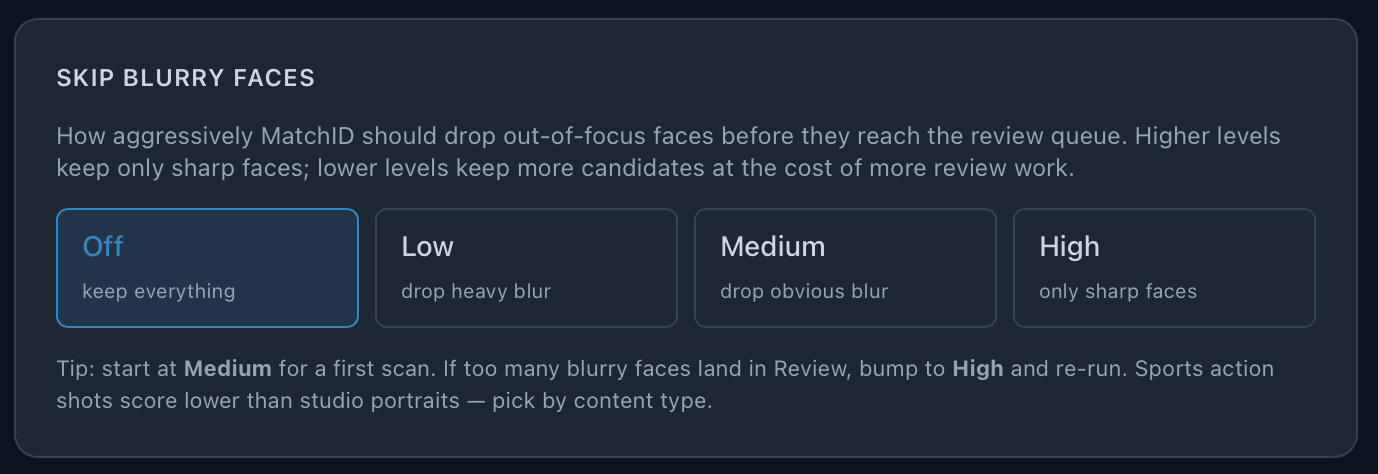
Skip blurry faces: Off, Low, Medium, High

How hard MatchID drops out-of-focus faces before they reach Review. Motion blur strips the detail recognition depends on, so a blurry match is more likely wrong than right.

OptionWhat it does
OffKeeps everything.
LowDrops heavy blur.
MediumDrops obvious blur.
HighKeeps only sharp faces.
Start at Medium. If too many soft faces land in Review, move to High and run it again. Action frames score lower than portraits, so pick by what you photographed.
This is about faces at match time. Flagging whole frames as blurry is Blur Cull, a separate setting under Browse & Preview.

Face size

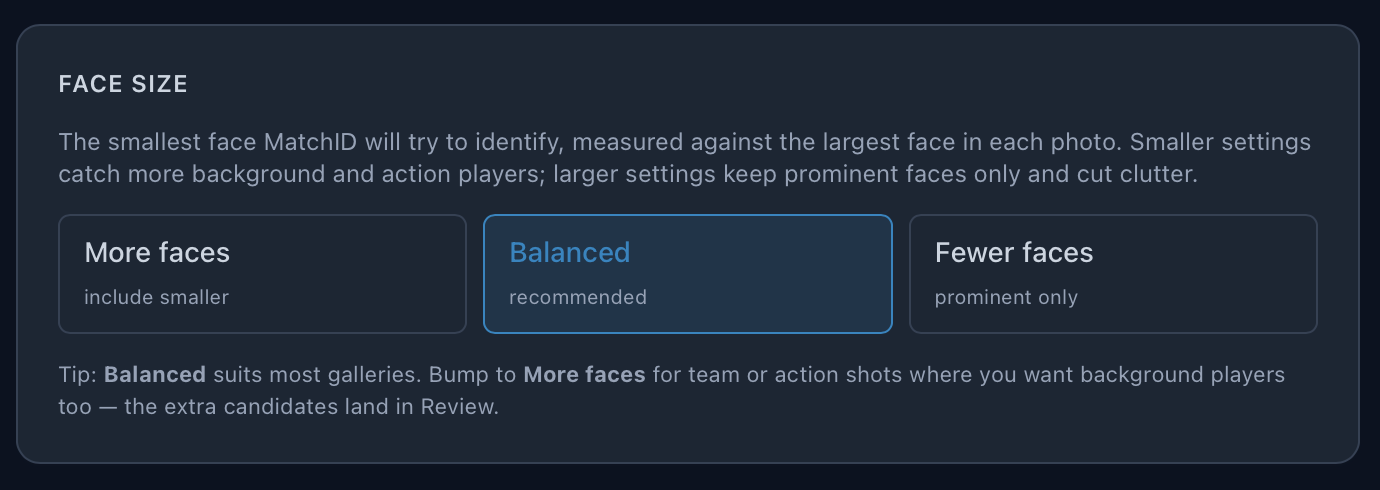
Face size: More faces, Balanced, Fewer faces

The smallest face MatchID tries to identify, measured against the largest face in each photo.

OptionWhat it does
More facesIncludes smaller faces, background and action players.
Balanced (recommended)The middle ground.
Fewer facesProminent faces only. Keeps spectators and the far bench out of Review.

The Default template

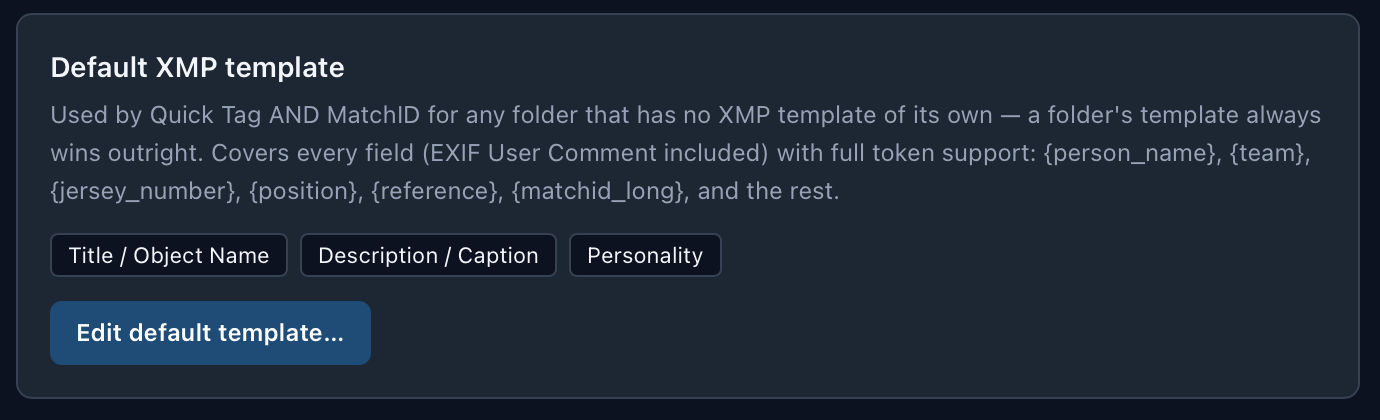
Settings, MatchID Metadata, with the Default XMP template card
Settings ▸ MatchID Metadata lists the fields the Default template fills.

The Default template decides which fields get a name when someone is tagged, by MatchID or from a roster with CaptionID. Any folder without a template of its own uses it.

  1. 1

    Open it

    Settings ▸ MatchID Metadata ▸ Edit default template… opens the ⌘I editor in Default template mode.
  2. 2

    Place the tokens

    Put {person_name}, {jersey_number} or a long form such as {matchid_long2} in the fields you want written.
  3. 3

    Save as Default

    New folders start from it. The Person Defaults button in the editor copies its token placement into any other template.
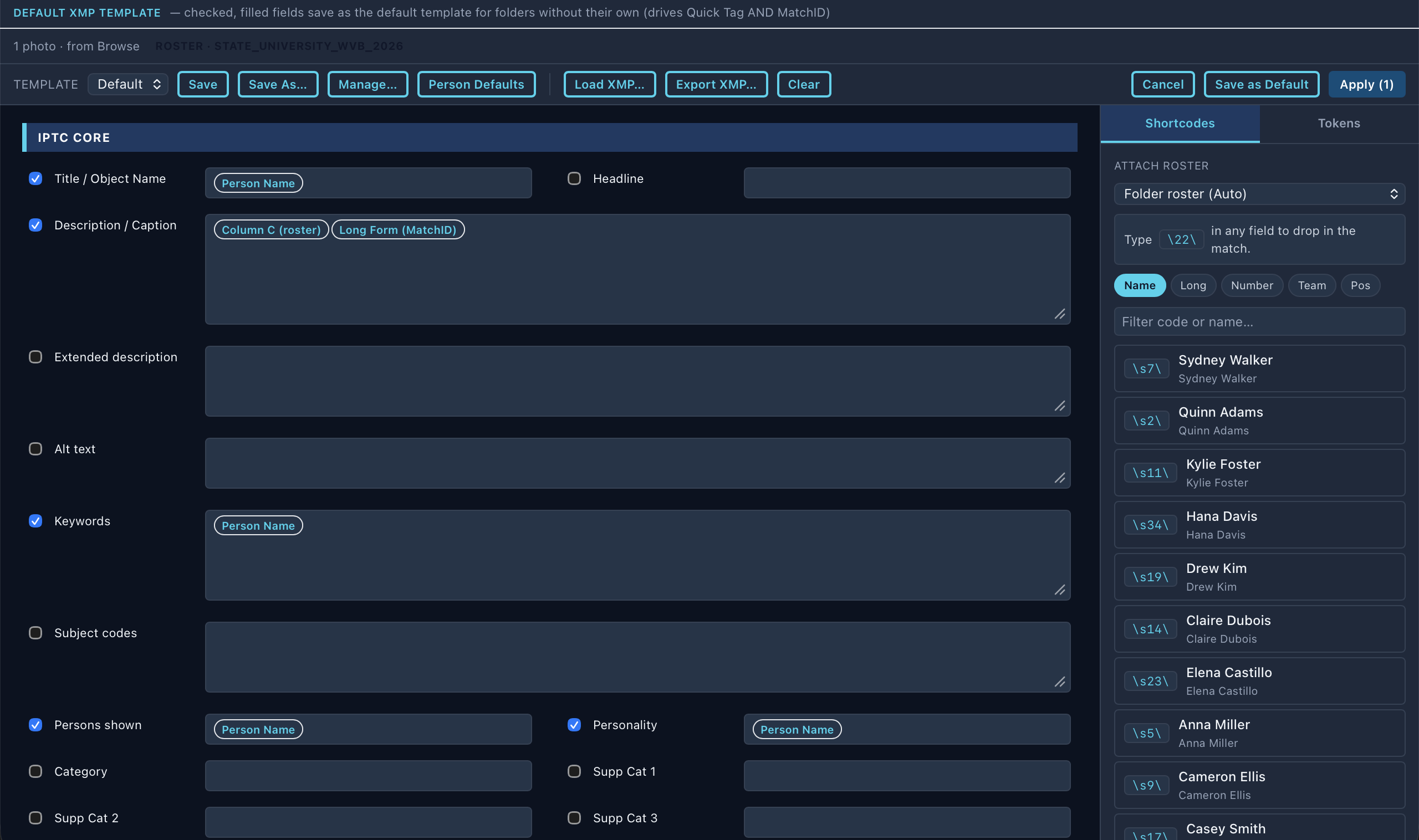
The IPTC editor in Default XMP Template mode, with roster and MatchID tokens
The editor in Default template mode. The banner says which template you're editing.
Tokens only fill in when a person is tagged, so the same template works on the whole folder. The file only ever gets finished text, never a raw token.

Good to know

  • •⌘I is also the one-off editor. Type a roster code between delimiters, such as \h1\, in any field to expand it.
  • •Names write to the file in XMP and IPTC metadata, with a sidecar for RAW. Photo Mechanic, Lightroom and Capture One read them, and the names go wherever the file goes.
  • •Nothing is locked in the app.

Related

Build an IPTC template with tokens →Index reference headshots →Tag photos with MatchID →Ingest from a card →
GalleryID

Athlete naming for sports photographers and athletic departments. GalleryID Desktop ingests, culls and captions on your own computer, and nothing is uploaded; SidelineID is Desktop on your phone at the game. GalleryID Cloud is the hosted archive you search by athlete name. The built-in Roster Library covers NCAA Division I, II and III and the major US pro leagues.

Find photos by athlete, not by filename.

iPhone and Android apps for both products →

Product

GalleryID DesktopGalleryID CloudMatchIDCaptionIDPhone appsFeaturesPricingCompare

Solutions

Sports PhotographersTeamAthletic DepartmentsColleges & UniversitiesAthletic ConferencesOrganizations

Company

Book a 30-Min DemoAboutContactPrivacyTermsDPADMCA

Resources

HelpCloud Getting StartedDesktop Getting StartedCaptioning SoftwareRoster LibraryAfter Photo Mechanic PlusBlog
© 2026 GalleryID. All rights reserved.Built by working sports photographers, on the same deadline you are.macOS, Windows and the web.

Photo Mechanic and Photo Mechanic Plus are trademarks of Camera Bits, Inc. Lightroom, Photoshop and Adobe are trademarks of Adobe Inc. Capture One is a trademark of Capture One A/S. Sideline Captions, Caption Pro, PhotoShelter, SmugMug, Zenfolio, Pixieset, Pic-Time and all other product and company names referenced on this site are trademarks of their respective owners. GalleryID is not affiliated with, sponsored by, or endorsed by any of them. Those names are used here only to identify the products being described or compared, and any comparison reflects each vendor’s published documentation at the time of writing.