Camera and phone
Caption on your phone as the camera sends, with SidelineID
SidelineID is the phone half of GalleryID Desktop. The camera joins the phone's hotspot and sends each JPEG as it's taken. You caption it from the roster with CaptionID, then send the named file by FTP or SFTP, to Desktop, to Photos or to a share.
What SidelineID is
SidelineID is GalleryID Desktop on your phone at the game. The camera sends each frame to the phone, CaptionID names the athlete from the roster Desktop synced down, and the named file goes out from the sideline before you’re back at the laptop. Desktop’s MatchID stays on your Mac or PC.
- •It's a mode of Desktop, not a separate product or subscription.
- •Names write to the file in XMP and IPTC metadata before it leaves the phone, with the same writer Desktop uses.
- •In the phone app it lives in the tab labelled SidelineID.
Connect the camera
Once per body. After this the camera reconnects on its own when the hotspot is on.
- 1
Turn on the phone's hotspot
iPhone: Personal Hotspot with Maximize Compatibility off. Android: Wi‑Fi hotspot, 5 GHz if offered. - 2
Open the SidelineID tab and tap the camera dot
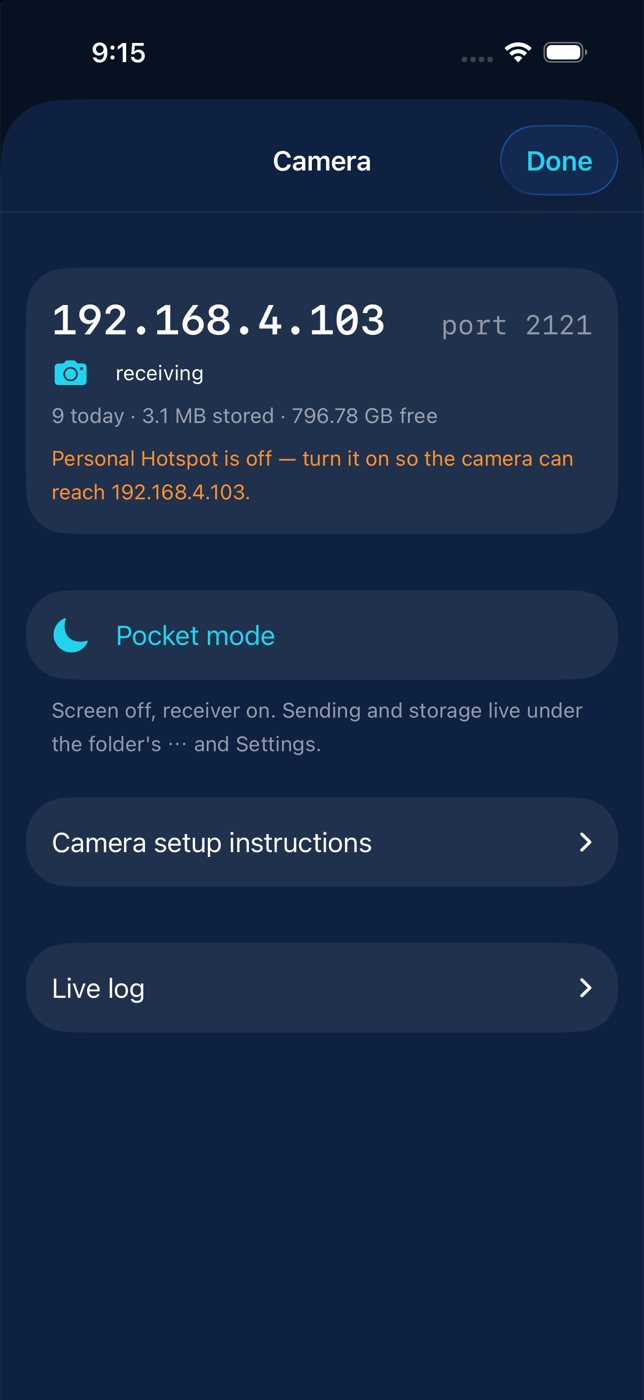
The panel shows the address the camera should send to and the port. The dot is green when the receiver is listening on the hotspot, yellow when the hotspot is off. - 3
Add an FTP transfer target on the camera
The phone’s address, port 2121 (not 21), passive mode on, plain FTP (not FTPS), and the username and password the Camera panel shows. - 4
Set Directory structure to Camera
In the camera’s FTP transfer settings. Each frame then arrives with its card folder (101EOS_B and so on), which ExifID card-folder sets match on. Leave the target folder at its default. - 5
Set transfer to send after capture, JPEG
On the Canon EOS R3 that's Wireless features ▸ Network settings ▸ Connect ▸ Transfer images to FTP server.
Frames arrive
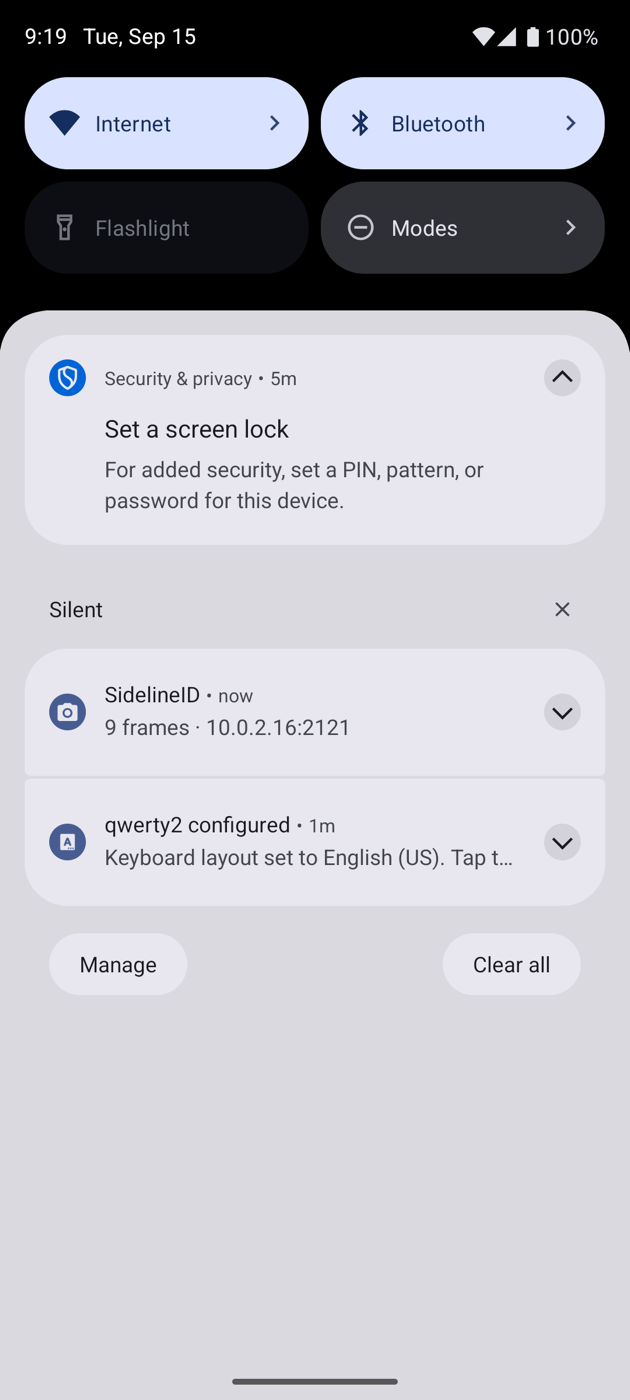
Each send from the camera is a burst in the current folder. Folders keep games apart.
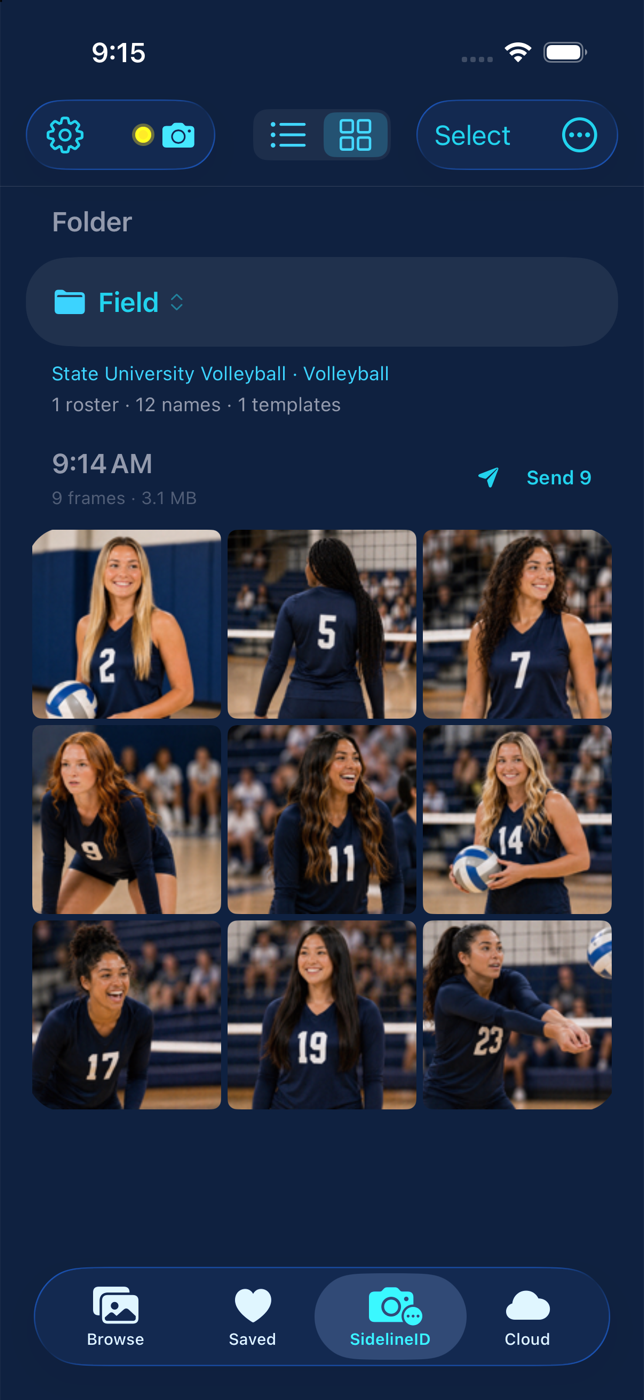
| Control | What it does |
|---|---|
| List / Grid | Switches the folder view, at the top. |
| Folder ▾ | Switches folders. |
| The folder's … | Holds its settings, Import from Photos, and Send folder. |
| Folder settings | Bind a roster and a template to the folder and each frame in it captions from them. |
| Select | Picks frames for Move, Rename, Delete or Send. |
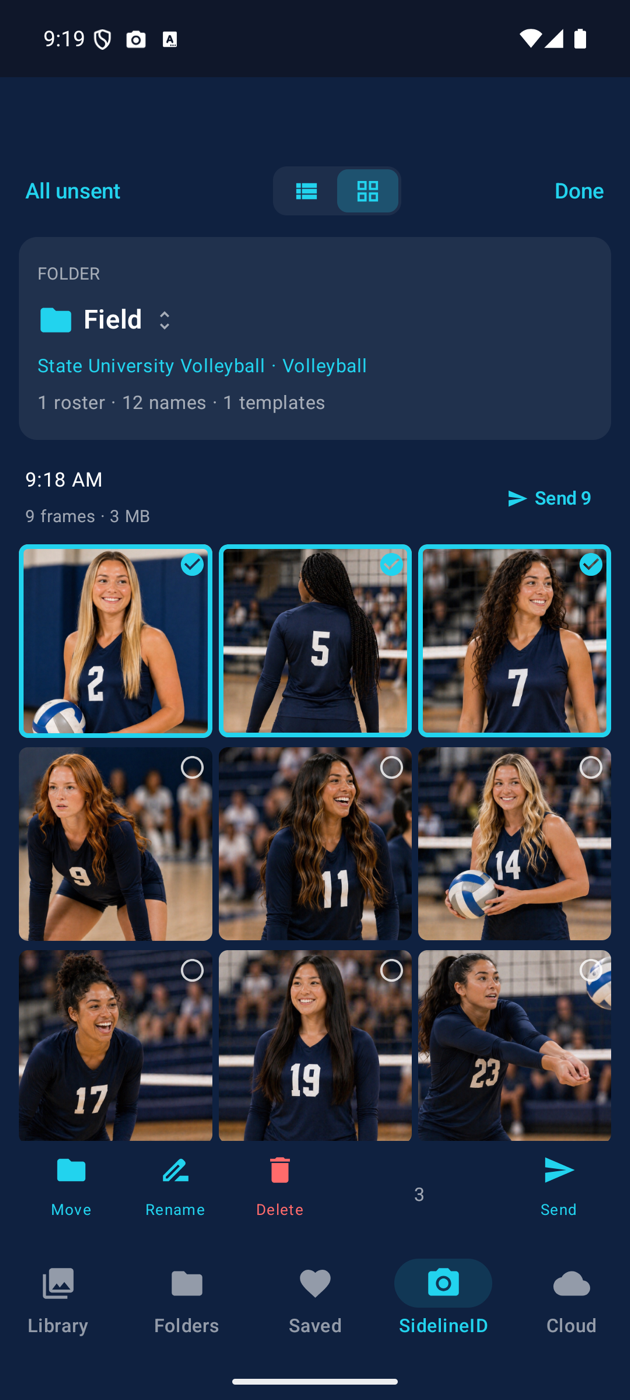
A frame that went out shows a green check; one that landed on Desktop shows a computer. Sent frames clear on their own when space runs low, or after a Desktop sync, or never, whichever you set in Settings.
Caption a frame
Tap a frame. The roster, the template and the CaptionID bar do the rest.
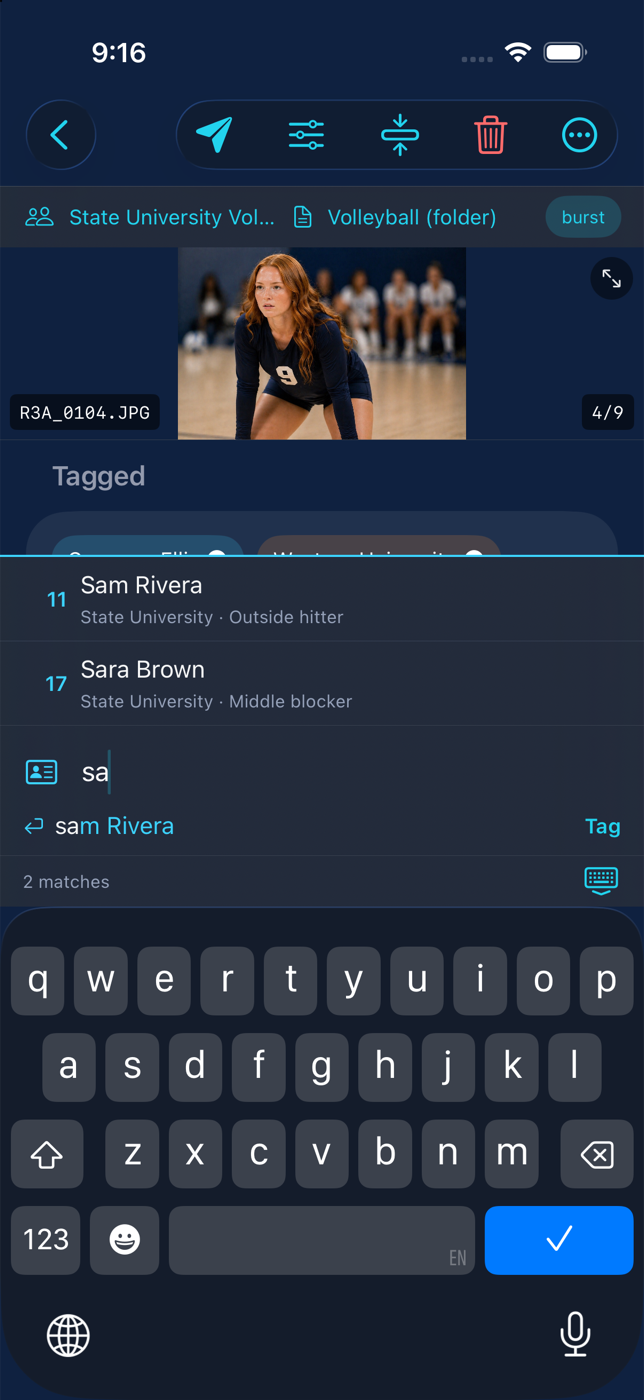
The CaptionID bar sits above the keyboard. Type a name or a number and the matches rise from the bar with number, team and position. Return takes the first match, or tap one.
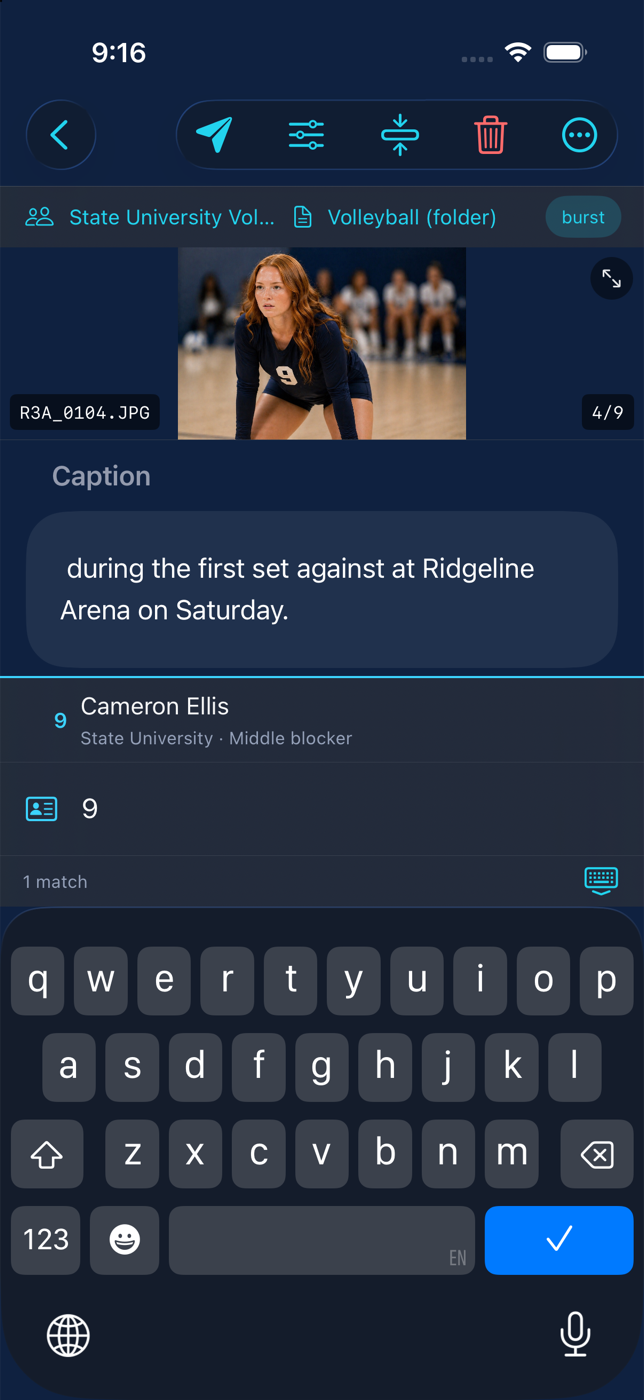
Two rosters bound at once keep their numbers apart, so 9 on the home roster and 9 on the visitors both show.
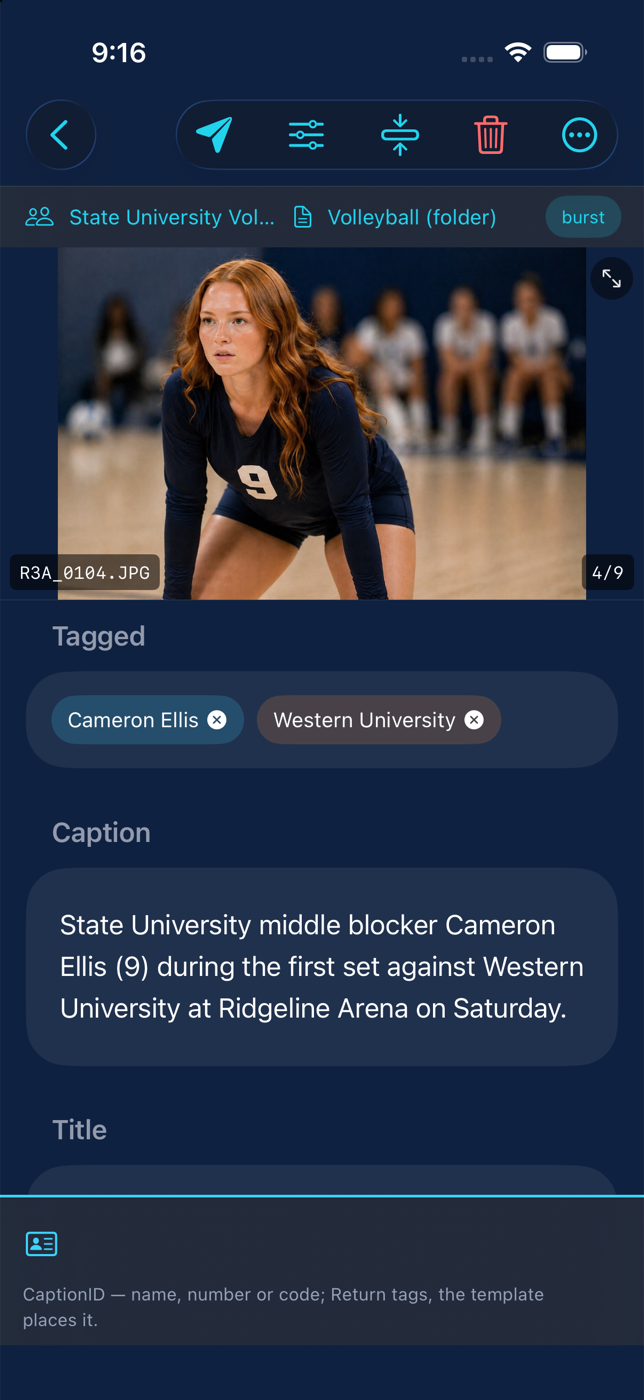
Accepting a name tags the person, and the template re-renders each mapped field from the tag: the long form in the caption, the name in the headline, the tag in Persons Shown. A common code (an opponent, a venue) tags the same way and lands where the template put it. Remove a chip and the fields re-render without it.
On a tablet
An iPad or an Android tablet uses the width: folder on the left, editor on the right, no full-screen editor and no paging back to the folder.
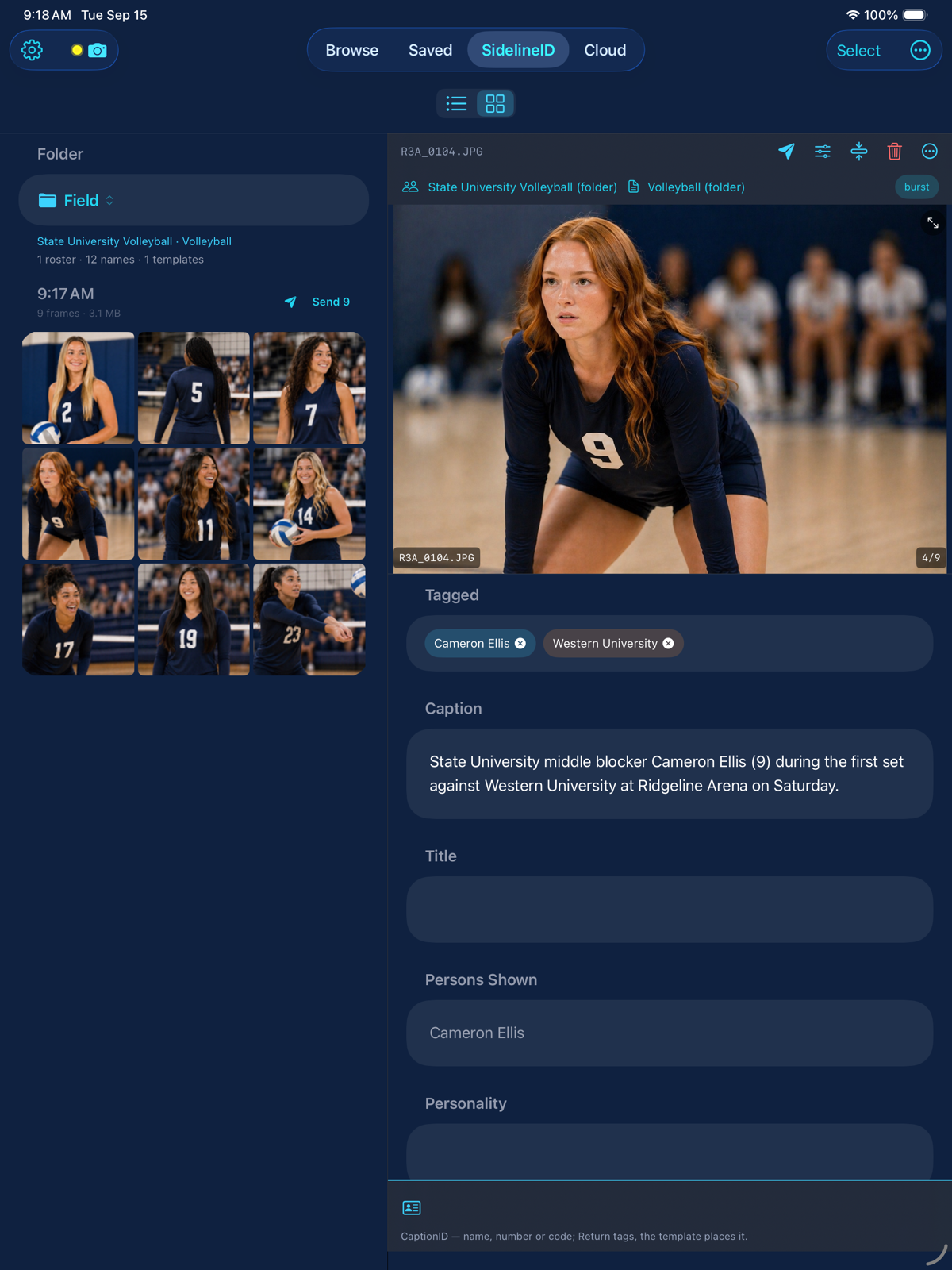
Tap a frame on the left and it opens on the right with the same scope row, CaptionID bar and actions. Swipe in the right pane to move through the burst. The Send, edit, collapse, delete and … actions sit in a row above the frame instead of the top bar.
Fields and edits
The sideline set shows the eight fields you touch at a game. Full metadata is there when you want it.
| Where | What it does |
|---|---|
| A photo's … ▸ Fields & layout | Switches to all IPTC fields, reorders the sideline set, or hides the filename overlay. |
| Copy IPTC and Paste IPTC | For a burst of near-identical frames. |
| Apply template and Reset to template | Re-apply the folder's template, or go back to it. |
| The sliders icon | Opens Light, Color and Crop. |
Send
One Send sheet, from a frame, a selection, a burst or the whole folder.
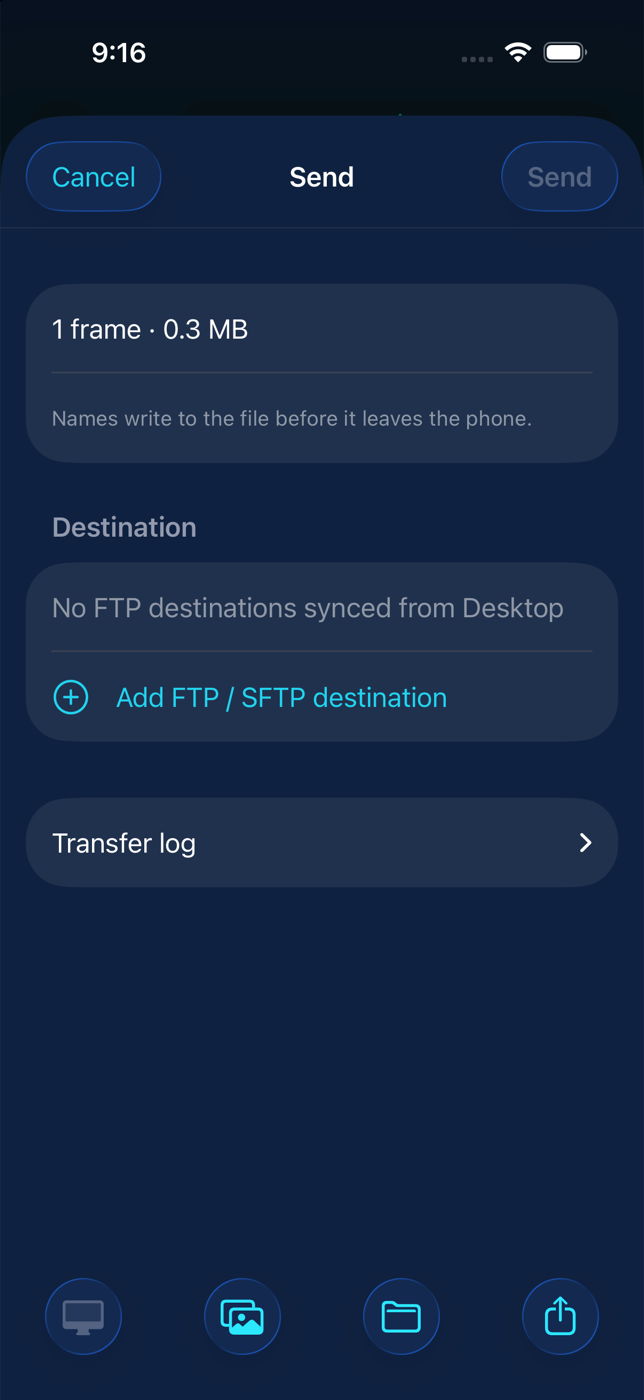
| Send to | What happens |
|---|---|
| FTP / SFTP | Destinations sync from Desktop, with their resize, sharpen, watermark and filename pattern. You can add one on the phone too. |
| Desktop | Drops captioned copies into Desktop's SidelineID inbox (Pictures ▸ GalleryID Field) and Desktop catalogs them. |
| Photos, Files and Share | Hand over stamped copies. |
Rosters and templates
They come from Desktop. Pair the phone (Catalog ▸ Pair Phone on the desktop) and the rosters, metadata templates and FTP destinations sync down whenever Desktop is reachable.
Gear ▸ Rosters lists them, refreshes on demand, and builds a new roster from the GalleryID feed: pick the league and up to four teams, and Desktop materializes it.
Limits
- •Short codes are a Desktop thing; the phone's CaptionID bar takes a name or a number. On a phone keyboard the delimiter is a screen switch away, so typing the name or the number is the faster route anyway.
- •JPEG only. The camera should send JPEGs, not raw.
- •FTPS destinations (AUTH TLS) aren't supported on the phone; use SFTP or plain FTP.
- •On Android the receiver listens on 2121 only.
- •On iPhone the receiver stops when the app is in the background, so keep it open and use Pocket mode.